Accounting Integration

Learn how Ottimate synchronize accounts payable with clients' accounting software.

Overview

In order to automate your accounts payable process with Ottimate, you need to set up the following accounting data entities in the following order. Ottimate considers the client’s accounting software to be the system of record, and every Ottimate implementation requires a connection to the client’s accounting system to keep accounting data in sync.

OrderObjectPulled from ERPDescription
1Ottimate AccountThe Ottimate Account entity. Set up by Ottimate during your onboarding.
2CompanyThe entity with its own accounting rules, chart of accounts, and vendors. Set up by Ottimate based on your accounting practice during onboarding.
3LocationsLocations are a company’s internal organizations that process invoices. Set up by Ottimate based on the company’s purchasing rules during onboarding. Permissions, mapping rules, and approval rules can be configured at the location level.
4DimensionsDimension from your ERP used to classify transactions, including GL accounts.
5Accounting VendorsVendors and suppliers that issue invoice to the company. Must be consistent with the suppliers in the AP module of your ERP.

How do these entities appear in Ottimate

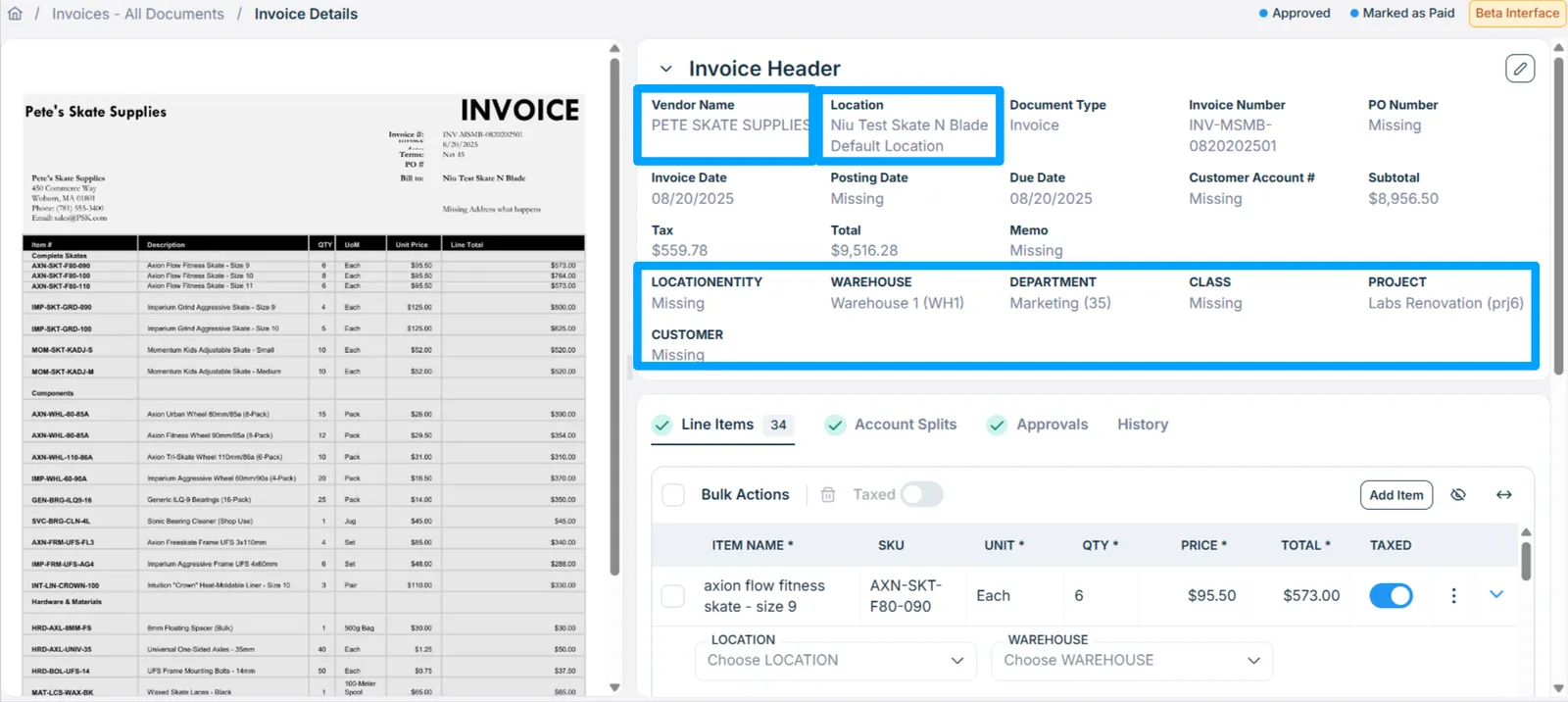
The following screenshot illustrates how these entities appear on the Ottimate platform. Entity UI Illustration

Ottimate has pre-built integrations with ERPs from Sage, Microsoft, Oracle, QuickBooks, and more. See the full list of supported ERPs here and can automatically pull in the required accounting entities. You can also build custom connections to unsupported ERPs using Ottimate APIs.

What can you do with the accounting endpoints?

  • Push accounting data - If Ottimate does not currently offer a hosted integration with your ERP, you can push accounting data to Ottimate, keeping Ottimate aligned with your system of record
  • Pull accounting data - If Ottimate offers a hosted integration with your ERP, you can fetch dimensions, vendor lists, and other accounting data entities that Ottimate has imported from the ERP into your own interface
  • Set up periodic syncs - Keep accounting data in Ottimate current and consistent by regularly pushing your accounding data into Ottimate